
Screen Recorder - Vidma Record
Vidma Video StudioVideo Players & Editors
4.515.75K Reviews
- Version
- 3.7.44
- Installs
- 50.00M
- Age Rating
- Everyone
Screenshots

Our Review of Screen Recorder - Vidma Record
 Analysis by Appyee
I’d judge a screen recorder by what happens after the red button is pressed: can I capture the useful moment, find the file, make it presentable, and pass it to someone without turning a simple task into a project? That’s the practical lens I bring to Screen Recorder - Vidma Record. It’s made by Vidma Video Studio, and its appeal is straightforward: recording and basic video preparation live in one place on an Android device.
That setup suits a familiar need. Maybe I want to show a relative where a setting is buried, save a short gameplay clip, or keep a visual record of steps in an app. A recorder is most helpful when it removes friction from those jobs, not when it offers a long list of controls I’ll never touch. Vidma Record aims for that direct route, though the best results still depend on choosing a sensible moment to record and knowing what I want the finished clip to do.
Choosing the right moment to record
Before starting, I find it useful to decide whether the clip is for my own reference or for another person. A quick capture for myself can be rough; a tutorial sent to a friend needs a slower pace and fewer distractions. That small decision affects how I use the recording and editing tools, and it prevents me from expecting a screen capture to fix unclear instructions after the fact.
For a walkthrough, I’d close anything unrelated, move to the screen where the explanation begins, and pause before tapping through the steps. If I’m recording a game, I’d start from a point that gives the clip context rather than trimming a long session later. These are simple habits, but they matter: screen recordings faithfully preserve accidental taps and dead time as well as the useful action.
Getting Started with Ease
The first thing I noticed when I fired up Vidma Record was its user-friendly interface. It’s super intuitive and doesn’t bombard you with unnecessary options. As soon as you open the app, you’re greeted with a clean dashboard that clearly lays out all your recording options. I didn’t even have to consult a manual or tutorial to get the hang of it, which is always a plus in my book.
Features Galore
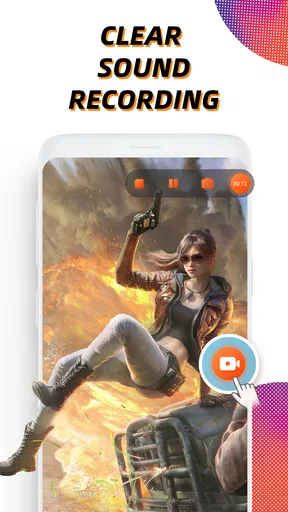
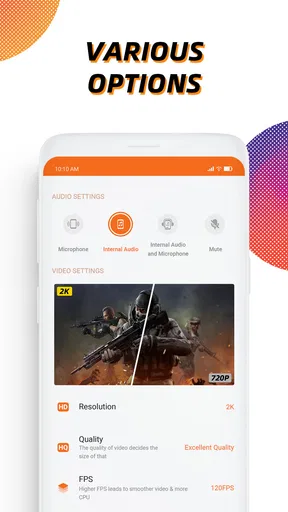
Now, let's dive into what makes Vidma Record stand out. First off, the app offers high-quality recording options. You can record in HD, up to 1080p, and choose your desired frame rate. This is perfect if you're looking to share professional-looking content. Plus, the app allows you to record both internal and external audio, which is a game-changer for those who want to add commentary to their recordings.
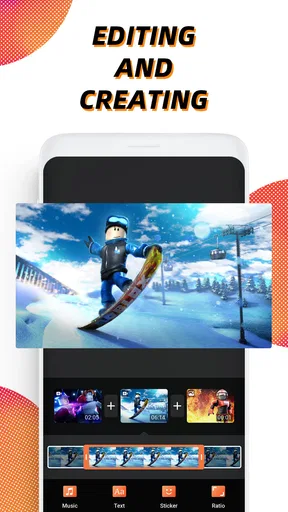
Another cool feature is the built-in video editor. After recording, you can trim and cut your videos right within the app. No need for additional software! You can also add music, text, and other effects to polish up your recordings. It’s like having a mini editing suite right in your pocket.
Turning a capture into something useful
The recorder and editor make most sense as a short workflow. I’d capture only the section I need, replay it once to check that the important action is visible, then trim the beginning or ending if I started early or stopped late. That quick review is worth doing before sharing: a clip can look sharp but still fail as a tutorial if a menu opens too quickly or the viewer can’t tell which button I tapped.
For a spoken explanation, I’d keep the narration focused on one task and leave a brief pause before and after important actions. If background sound is distracting, a short edit can help make the clip easier to follow, but adding music or text is not automatically an improvement. I’d use those options only when they clarify the point; decorative edits can make a simple how-to harder to watch, especially on a small phone screen.
A useful trade-off is recording quality versus the size and convenience of the finished file. Higher-quality settings make fine interface details easier to see, while a brief demonstration often does not need the most demanding setup. I’d match the recording choice to the destination: a clip meant to explain small text deserves more care than a casual moment kept for myself. Checking the finished video before sending it also helps catch audio that is too quiet or a section that should have been cut.
Performance and Usability
Performance-wise, Vidma Record runs smoothly without any noticeable lag or crashes, which is crucial for a screen recorder. The app is lightweight, so it doesn't hog your device’s resources. I recorded a couple of gaming sessions, and the app handled it like a champ. The recordings were crisp and didn’t drop frames, even during intense gameplay.
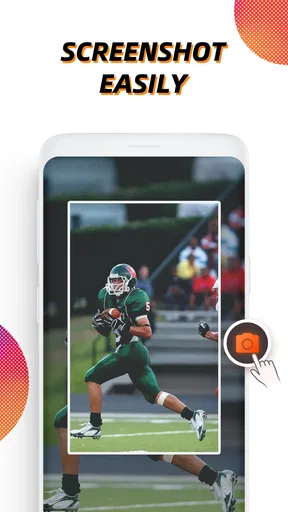
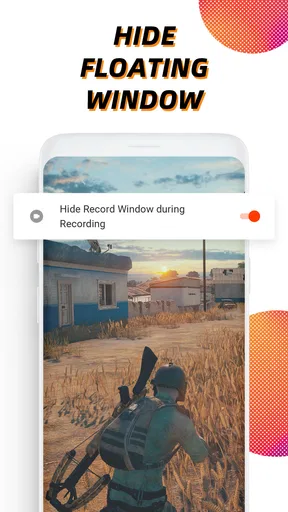
In everyday use, the floating widget is handy because it keeps the start-and-stop controls close to the screen I’m capturing. I’d still plan where it sits before recording a tutorial or game clip, so it doesn’t cover the button, text, or action I’m trying to show. The ability to take screenshots during a recording is also useful when a still image will explain something faster than another stretch of video; I can capture the moment, then decide whether the video or image is the better handoff.
From phone to viewer
Once the capture is ready, I’d treat export as a separate check rather than the automatic end of the job. A clip for a family group chat may need only a quick trim, while a recording for a public post benefits from a clear opening and a useful ending. Vidma Record lets me send videos to the gallery or share them onward, so I can choose between keeping a copy and passing the result along.
That handoff is where I’d be selective. A screen recording can show notifications, account details, or other personal information that was visible while I worked. I’d review the whole clip before sharing, not just its first few seconds, and trim away anything unrelated. This is a practical habit with any recorder, but it matters particularly when a capture is being made to explain a task on a screen that may contain private details.
For someone comparing it with the recorder already built into a phone, the choice comes down to workflow. A built-in tool can be enough if all I need is a fast capture and no editing. Vidma Record is more appealing when I want recording and basic finishing tools together, especially for short demonstrations or clips I intend to share. If I need a detailed editing project, precise production controls, or a larger desktop workflow, I’d use a dedicated editor instead of expecting a mobile recorder to do everything.
Performance and Usability
Performance-wise, Vidma Record runs smoothly without any noticeable lag or crashes, which is crucial for a screen recorder. The app is lightweight, so it doesn't hog your device’s resources. I recorded a couple of gaming sessions, and the app handled it like a champ. The recordings were crisp and didn’t drop frames, even during intense gameplay.
Even a smooth recording app can’t remove every source of friction. Long sessions take more attention than brief clips, and a game or app may behave differently while the screen is being captured. I’d make a short test recording before an important tutorial or a session I don’t want to repeat. It gives me a chance to check framing, sound, and whether the steps are understandable, without discovering a problem after I’ve already finished the full take.
The app is free to start, and it is rated for Everyone. Its current version is 3.7.44, with Android 6.0 as the minimum operating-system requirement. In-app purchases range from $6.99 to $199.99 per item, so I’d look carefully at what is offered before paying; a basic screen-capture need may not justify an upgrade. Its 4.5 average comes from around 890,000 ratings, and it has passed 50 million installs, which suggests it has found a broad audience without guaranteeing that every device or use case will feel identical.
Where it fits—and where I’d choose something else
I’d recommend trying it if you regularly make short how-to clips, capture gameplay highlights, or need to show someone exactly what appears on your screen. The built-in trimming and light editing are useful when the goal is a finished, shareable explanation rather than an untouched recording. It’s also a practical choice for someone who would rather handle a capture and a quick cleanup on the phone than move the file immediately to another app.
I’d skip it if screen recording is a rare task and the phone’s built-in recorder already gives me everything I need. I’d also choose a more specialized video editor for projects that call for elaborate timelines, fine-grained audio work, or substantial post-production. Vidma Record’s strengths are convenience and an accessible recording-to-sharing path; that is not the same as being a replacement for every editing tool.
One more useful habit is to keep the purpose of a capture narrow. If I’m showing how to change a setting, I can record just that route instead of narrating unrelated phone use. If I’m saving a game moment, I can decide whether the surrounding action helps explain why it matters. Keeping the clip focused makes trimming easier, reduces unnecessary material in the handoff, and gives the viewer less to sift through.
Sharing and Exporting
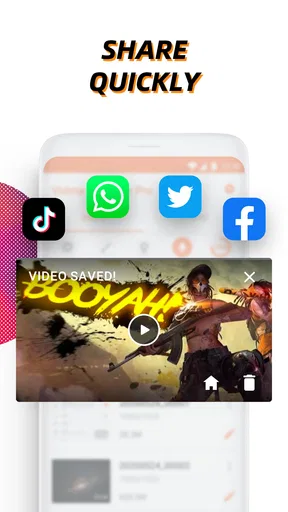
Once your video masterpiece is ready, Vidma Record makes it easy to share. You can export videos directly to your gallery or share them straight to social media platforms with just a tap. The app supports various formats, so compatibility isn't an issue. Whether you’re uploading to YouTube or sharing a clip on Instagram, Vidma Record has got you covered.
Wrap-Up
In conclusion, Screen Recorder - Vidma Record is a robust and versatile tool for anyone needing reliable screen recording capabilities. Its combination of user-friendly design, high-quality output, and powerful editing features make it a standout choice in a crowded market. Whether you're a professional content creator or just someone who wants to capture moments from your screen, Vidma Record is definitely worth checking out.
So, if you’re on the lookout for a screen recorder that’s both powerful and easy to use, give Vidma Record a try. You might just find it’s exactly what you’ve been looking for!
My own recommendation is more specific: I’d use it when the job begins and ends on an Android phone, and when a clean, brief capture matters more than elaborate production. A quick test, a focused recording, a careful trim, and a privacy check make a much better workflow than relying on editing to rescue an unfocused take. For that everyday use, Vidma Record is an approachable option; for occasional captures or demanding editing, the built-in recorder or a dedicated editor may be the better fit.
Verdict
Strengths of Screen Recorder - Vidma Record
- User-friendly interface for easy navigation.
- High-quality video recording with no lag.
- Built-in video editing tools for quick edits.
- Supports recording in multiple resolutions.
- No watermark on recordings in the free version.
Limitations of Screen Recorder - Vidma Record
- Free version contains ads that can be intrusive.
- Limited cloud storage for saving recordings.
- Requires in-app purchases for premium features.
- Audio recording can sometimes be out of sync.
- No live streaming feature available.
Other Releases by Vidma Video Studio
View All
AI Video Editor - Vidma Cut AI
Video Players & Editors4.6

TextNum: Call + Text for Now!
Communication4.5
Similar Picks in This Category
View All
Google TV
Google LLC3.9

iTunes
Apple4.7

YouTube
Google LLC3.8

MX Player
Amazon Mobile LLC4.2

CapCut - Video Editor
Bytedance Pte. Ltd.3.5

PLAYit-All in One Video Player
PLAYIT TECHNOLOGY PTE. LTD.4.5
Frequently Asked Questions
What features does Vidma Record offer for screen recording?
Vidma Record provides a comprehensive set of features for screen recording, including high-definition video capture, internal and external audio recording, and a floating window for easy access. It also supports facecam, allowing users to add a personal touch to their recordings. Additionally, it offers editing tools like trimming and adding music.
Is Vidma Record free to use, or does it require a subscription?
Vidma Record is available as a free download with basic features. However, for users seeking advanced functionalities, such as no watermark and unlimited recording time, a premium subscription is available. The app provides in-app purchases to unlock these additional features, making it flexible for different user needs.
What file formats are supported by Vidma Record for video output?
Vidma Record typically saves videos in the MP4 format, which is widely compatible with most devices and platforms. This ensures that users can easily share their recordings across different media without needing to convert the files. The app’s settings allow users to adjust resolution and quality for optimal results.
Does Vidma Record work on both Android and iOS devices?
Yes, Vidma Record is compatible with both Android and iOS platforms. This makes it a versatile choice for users regardless of their device preference. The app is designed to perform optimally across different operating systems, ensuring a smooth recording experience on both Android and iOS devices.
Are there any privacy concerns with using Vidma Record?
Vidma Record is committed to user privacy and does not collect personal data without consent. The app requests necessary permissions to function, such as access to the microphone and storage, but it does not share user information with third parties. Users can review the app’s privacy policy for more detailed information.
